
Summary created by Smart Answers AI
In summary:
- Macworld explores 15 Apple ecosystem features that enable seamless device integration, from Apple Watch unlocking to Universal Control features.
- These features are important to Apple users looking for increased productivity through cross-device workflows, including Handoff for transitions between tasks and AirDrop for instant file sharing.
- Key integrations include Focus mode syncing, iCloud data consistency, iPad Sidecar functionality as a monitor, and using Apple devices as Apple TV remotes with a built-in keyboard.
“It just works” is one of Steve Jobs’ most famous quotes, but it’s more than that: it’s a core principle of Apple’s product strategy. From unboxing and setting up to exploring features, the experience of every Apple device is designed to be simple, welcoming, and intuitive for novices and techies alike.
However, what is even more impressive is the way Apple products combined so seamlessly. If you’ve invested in a Mac, iPhone, iPad, Apple TV, and Apple Watch, but haven’t discovered the features that connect them so effectively… well, you’re missing out. Master Apple’s smart ecosystem integrations and you’ll feel like the boundaries on every screen simply disappear. Instead of struggling with multiple devices, you’ll work with a single, interoperable system that accomplishes everyday tasks in whatever format works best for you.
Not sure how to connect your Apple devices as a seamless single entity? Here are 15 ecosystem benefits you should learn about.
1. Simple setup
As long as you have one Apple device, setting up a new one will always be relatively simple. For example, your iPhone will automatically recognize when a brand new iPad, Apple TV or HomePod is nearby. You can then quickly sign in with your Apple account and transfer certain data by scanning the code.
This process also makes it easy to upgrade to a new iPhone because you can wirelessly move all your apps, photos, texts, and preferences even if you didn’t back up your old device.
2. Easy unlocking
At the moment, all primary Apple products support Face ID, Touch ID, or Optic ID (iris recognition technology on the Vision Pro). But biometric authentication is not 100% reliable; sometimes it fails because your fingers are wet, your face is covered, or for some other reason. Fortunately, owners of multiple Apple devices have additional options for easy unlocking.
Your Apple Watch can unlock your Mac whenever you wake up its display. Similarly, it can help you bypass Face ID on iPhone when you’re masked. And the feature also works the other way around: You can unlock your Apple Watch by unlocking your iPhone, saving you from entering a passcode on a small screen.
Mahmoud Itani / Foundry
3. Delivery
I love Handoff. When you get home, you can move your music queue from iPhone to HomePod (or vice versa when you’re out and about) by bringing them closer together. This feature also works with phone calls and allows you to actually “send someone to speaker”.
Handoff isn’t just limited to the iPhone and HomePod, though. When you’re working on a task in a compatible app, your other Apple devices let you pick up where you left off with the tap of a button. So if you’re writing an email on iOS, the macOS dock will display a shortcut to continue writing.
4. Universal clipboard
When you copy an item on one Apple OS, the Universal Clipboard means you can directly paste it into another if it’s nearby. It’s priceless.
This feature works with both text and images, allowing you to quickly borrow files and content from various Apple products. To make the experience even more magical, you can use the three-finger pinch gesture to copy (drag) and paste (stretch) on touchscreen devices. It’s embarrassing, but so impressive.
5. Universal control and sidecar
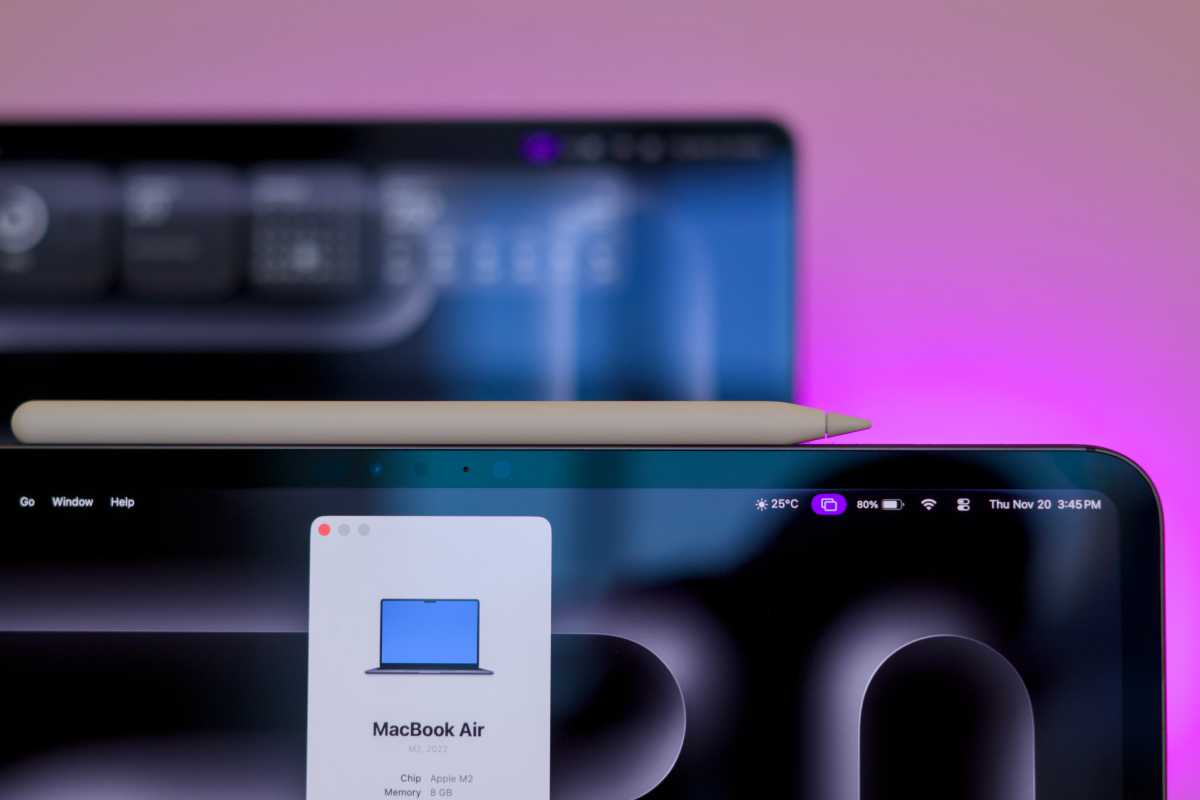
Speaking of magic, if you’ve placed a Mac and an iPad next to each other, dragging the cursor past the screen border will move them into iPadOS. This allows you to use a desktop mouse and keyboard to interact with the tablet. You can also drag and drop files between two devices using the same Universal Control benefit.
Similarly, you can use the iPad as an external wireless monitor for your Mac using the Sidecar feature. This allows you to use touch input and Apple Pencil input for relevant desktop tasks.
Mahmoud Itani / Foundry
6. Fast authentication
If your Mac doesn’t have Touch ID, entering your password every time you need to buy a digital product or approve a system dialog can be annoying. Fortunately, you can double-click the Apple Watch’s side button to avoid the hassle and authenticate faster. Similarly, Apple TV lets you authorize certain actions using your iPhone’s Face ID sensor to save you from having to fiddle with the TV’s controls.
7. Data Transfer
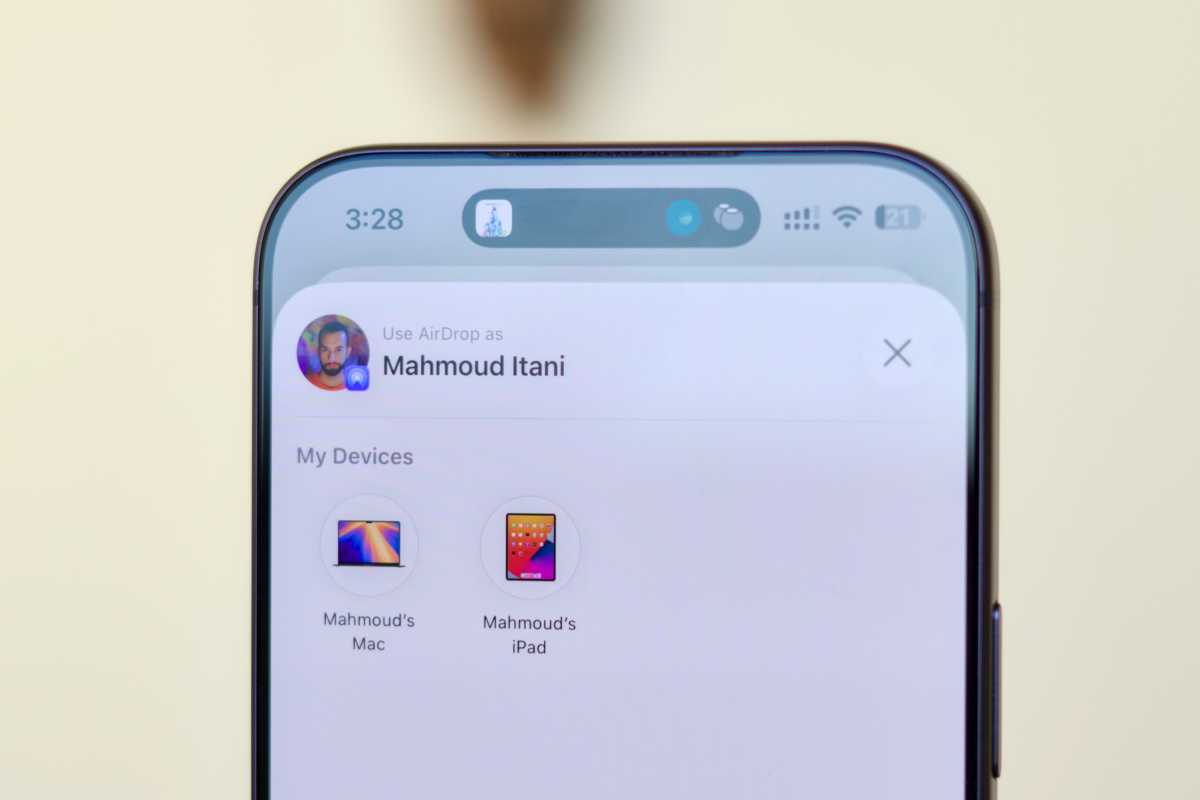
AirDrop is potentially the most popular feature of the Apple ecosystem, allowing you to instantly share files between your devices. The technology relies on Bluetooth and Wi-Fi Direct connections, so you don’t have to rely on iCloud or third-party wireless transfer solutions that can be slow when moving large files.
Speaking of iCloud, it’s also one of the best benefits of investing in an Apple-only setup. Photos, notes, messages, contacts, Wi-Fi and account passwords, files and other types of data always stay up-to-date on every device. Say it with me. It just works.
Mahmoud Itani / Foundry
8. Forwarding calls and text messages
Whether you’re taking a phone call through FaceTime or your carrier, all your nearby Apple devices will (optionally) ring, including your watch, tablet, desktop, and TV. This makes it convenient to receive a call no matter what room you are in or what you are doing. Similarly, you can send and receive both SMS/RCS and iMessages from any of the connected devices.
If you’re worried that this feature might make your life uncomfortable — always being available for a call or video chat no matter where you go to escape — don’t forget that you can set focus modes to limit notifications and distractions. The best part? Focus modes also sync across your devices, so you won’t have to manually activate them multiple times for your fleet of devices.
9. Convenient labels
Since Macs still don’t have touch screens, some tasks like signing electronic documents can be difficult. Never mind. Instead of trying to sign your name with a mouse, you can grab a nearby iPhone or iPad and directly sign or scribble on the same file you’re working on in macOS.
10. Remote camera control
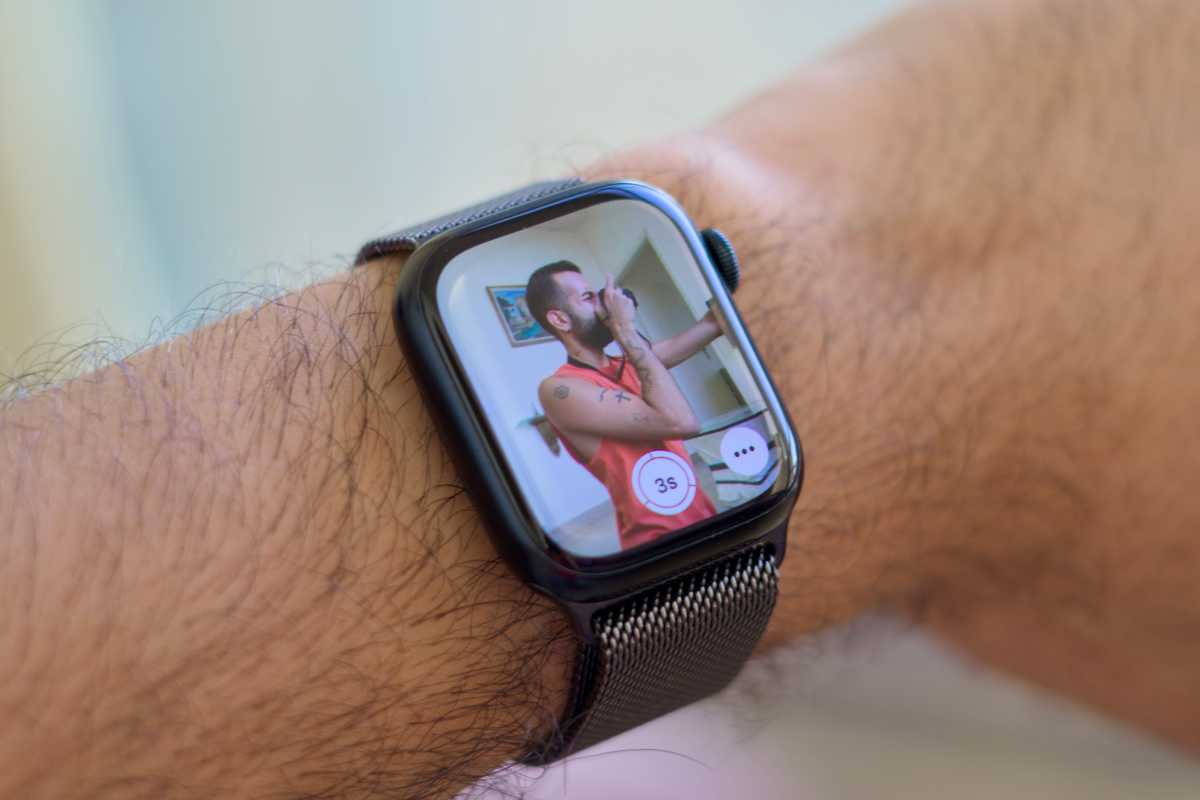
If you want to take a proper photo (as opposed to a selfie) and there’s no one around to help you, Apple’s ecosystem can kick in. Simply position your iPhone as needed, walk away from it and pose. You can then launch watchOS’s built-in Camera Remote app, check the viewfinder, and take photos. Alternatively, you can click the stem of a compatible AirPods if you don’t have a watch.
Mahmoud Itani / Foundry
11. Selecting the sound source
Speaking of AirPods, one benefit of interoperability that you should know about is automatic device switching. If you use AirPods to listen to music played on your Mac and then start a call on your iPhone, the headphones will automatically disconnect from macOS and connect to iOS. After the call, if you start watching the latest Pluribus episode on your iPad, the AirPods will similarly move to the new audio source.
12. Continuous camera
Newer MacBooks now have decent webcams with Center Stage and virtual background support. However, not all Macs are MacBooks, and not all MacBooks are new. If your Apple computer has a bad camera or no camera at all, try Continuity Camera, which uses your iPhone’s advanced lenses and microphones. This technology also powers video calling on tvOS, as the Apple TV doesn’t yet have a webcam.
13. Device Mirroring
If you’re working on your Mac, you may notice that iOS notifications and Live Activity now appear on macOS. This recent integration can also mirror your entire iPhone, allowing you to work with apps without picking up your iPhone. iOS can similarly mirror your Apple Watch when you can’t work with a smaller display.
14. TV remote control
The sleek Apple TV Siri Remote is a beautiful object that all too often disappears on the couch. If this has happened to you or you just don’t like the Siri Remote, use your iPhone, iPad, and Apple Watch instead. All have a built-in tvOS remote that lets you control volume, switch apps, power on/off, skip media, and more. Plus, when you come across a text field on tvOS or watchOS, you can use a nearby iPhone or iPad to type on the correct keyboard.
If the iPhone app you’re using to stream media doesn’t offer a native Apple TV client, you can also play content from iOS to tvOS using AirPlay in most cases.
15. Audio/Video Calibration
Finally, you can use your iPhone’s camera and microphone to calibrate your Apple TV’s audio and video output. This tool ensures that the content you watch is displayed as it should be.