
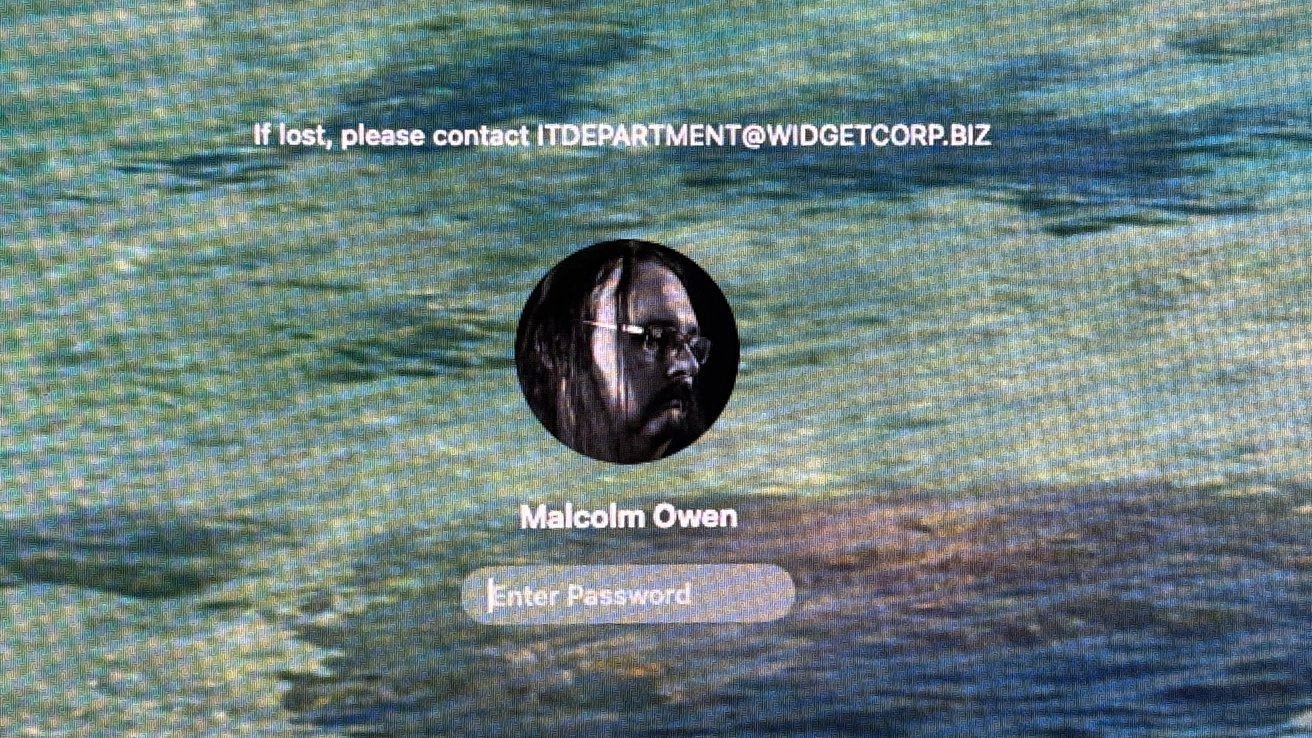
You can set a message to appear on the screen when people log in to your Mac. Here’s how to set it up and how to remove it.
The screen you see when you turn on your Mac prompts you to sign in. However, while people will be familiar with fields like your name, profile picture, and password fields, there’s one more thing you can change on your screen besides your wallpaper.
You can set a message to appear on the macOS lock screen. Here’s what you can do with this long-standing and oddly useful feature.
Why there are custom messages on the lock screen in macOS
If you’re used to having a personal Mac that you can use every day, you probably won’t come across this feature that often. Aside from making your Mac a little more personalized, there’s little reason for a single-user Mac to set it up at all.
Sometimes messages may appear on the lock screen explaining that there are specific things you should know when you return. With the advent of screen recording features used in tools like Zoom, you may see messages like “Your screen is being watched.”
This lets users know they may be tracked when they log in again, potentially avoiding an embarrassing situation.
While automatic messages are useful, it is also possible to set up custom messages, which is what this guide is all about.
The process of setting up a custom message on the lock screen in macOS Tahoe
Setting a custom message makes sense in situations where you need to remember something regularly, when you need to alert or advise the user about something, or as a form of hardware identification.
For the first two reasons, consider the possibility that the primary user may not know what their account password is. It could be used to display a hint to jog their memory, as a more obvious version instead of the existing password hint reminder.
This message can also be a warning for users to do or not do something on the Mac. There may be a warning to shut down processes before logging out, or a warning that something needs to be started shortly after logging in, for example.
A description of how to contact technical support in the event of a forgotten password is also not a bad idea.
Another way is to use a custom message as a form of identification. For example, to indicate in macOS that a computer belongs to a specific department or room in a business environment.
For individuals with MacBooks, this could also serve as a way to display contact information for users to make it easier to turn in lost hardware. Although Lost Mode allows you to set custom messages, if you do it this way, those details may be visible from the lock screen before you enable Lost Mode.
This could help users get their missing MacBook Pro faster.
As a result, there are many different ways to use messages on the lock screen. It’s an old feature, but for the right person it can be a very useful item.
How to add a message on the lock screen in macOS
- Click on Apple logo then in Menu System settingsthen Lock the screen.
- Tap the switch next to it Show message when locked activate it.
- Click File… enter next to the radio button text you want to use, then click Good
At this point, when you log in or lock your Mac, you’ll see the typed message. Use it File… button to change the message in the future.
How to remove message on lock screen in macOS
This can be achieved in two ways. The first is just the first two setup steps, click the toggle option to disable it.
The second is when your message is stuck and you can’t delete it yourself. This can happen if it was set by a process over which you may not have control.
For example, if you use a personal computer in a commercial environment and install software that is managed by a central IT department. Doing so can install profiles and other features.
Even after unpacking and cleaning thoroughly to remove them after exiting this task, the login message may still hang.
One answer to this is the terminal command:
sudo defaults delete /Library/Preferences/com.apple.loginwindow LoginwindowText
In this file, you can set your own settings, including the message. This line deletes the settings and thus the message. Terminal is a particularly powerful Mac app and it’s pretty easy to do a lot of damage, so use it with caution.