

The Apple Watch is now in its eleventh generation, and they’re packed with useful features that are easy to overlook at first glance. To help you get the most out of your new device, we’ve rounded up 15 handy tips you may not have discovered, including a few that longtime users often overlook.
Bounce between two apps
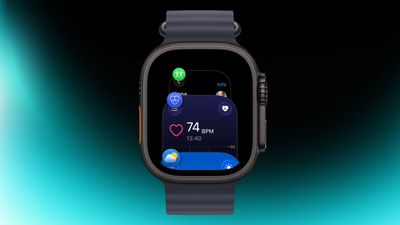
Double-press the Digital Crown on your Apple Watch to see a set of all currently open apps, and rotate to scroll through them. From this view, you can go back to the last application you were using. Simply tap an app’s screen to switch to it, or swipe left on its tab and tap the red X button to exit it.
Switch app view
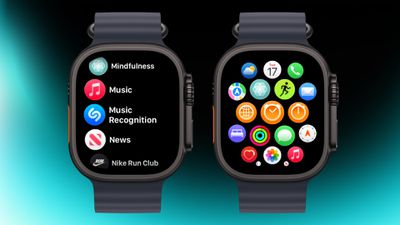
If the app grid seems cluttered, switch to list view. Open the Watch app on your iPhone, tap App view, and choose List view. From then on, pressing the Digital Crown will display your apps in a simple, scrollable list.
Organize apps
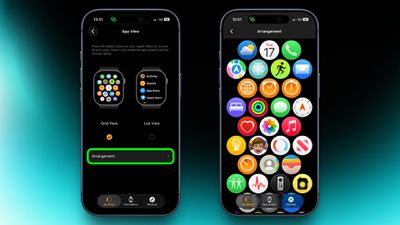
You can rearrange your apps so that the ones you use most are close at hand. Simply press and hold any app in the grid view, then drag it to where you want it. Alternatively, open the Watch app on your iPhone, go to App View ➝ Arrange, and move things around there instead.
Call your iPhone
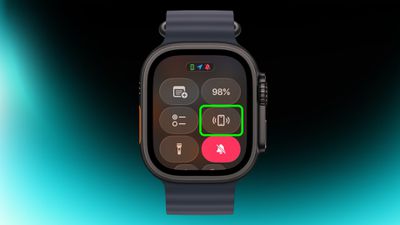
If you’ve forgotten your iPhone but are sure it’s nearby, open Control Center by pressing the side button, then tap the phone icon to activate the ping command. Press and hold this icon and the iPhone’s camera flash will also flash, which can help if it’s hidden under something.
Skip the countdown
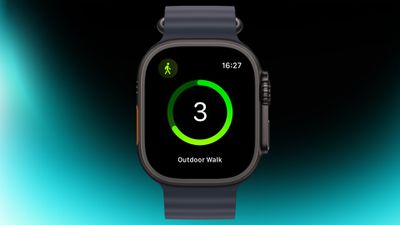
If you want to start your workout, you can skip the three-second countdown before it starts. When the countdown starts, just tap the screen and your workout will start immediately. If you find yourself doing this regularly, consider turning on Precise Start in Settings ➝ Exercise.
Adjust the vibration strength
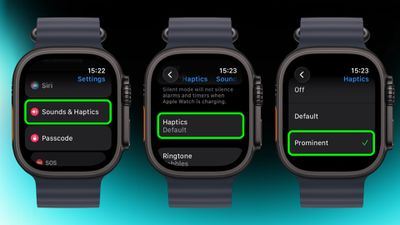
If you’re still missing notifications, go to Settings ➝ Sounds & Haptics ➝ and change the setting from Default to Prominent. This adds an additional tap pattern before the notification, making it harder to ignore.
Perform precise timing
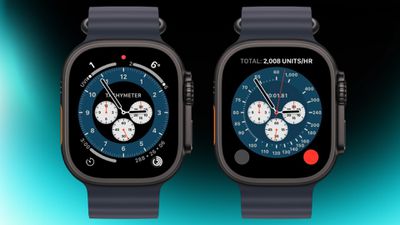
The Chronograph Pro dial turns into a real chronograph. Tap the outer rim around the main 12-hour dial on this dial to record the time on a 60, 30, 6, or 3-second scale. Alternatively, select the tachymeter time scale to measure speed based on time travel over a fixed distance.
Go to top
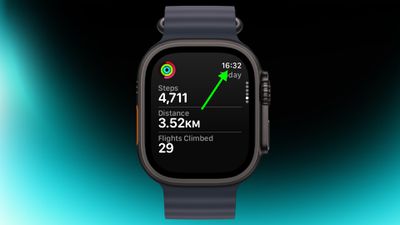
If you scrolled down in the app and want to go back up, just tap the time in the top corner of the screen. It works in most apps and saves a lot of scrolling.
Remove apps
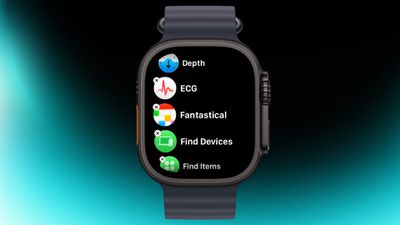
Deleting apps you don’t use on your Apple Watch is easy. In list or grid view, press and hold on the screen until the apps vibrate, then tap the small x in the corner of the app icon to remove the app. This works for most system apps and all third-party apps.
Customize Control Center
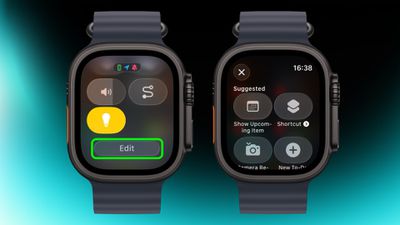
By default, the Control Center (accessible via the side button) gives you quick access to things like Wi-Fi, battery, and Do Not Disturb mode. But it’s worth seeing what else you can add to it that you’d like to have quick access to. Tap the Edit button at the bottom, then tap the + icon at the top left of the screen. System options such as New Note and Lights are particularly useful, and depending on the apps you have installed, you may also see some third-party options.
Say the time out loud
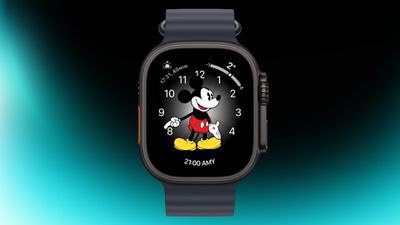
If you’re using a Mickey or Minnie watch face, tap the character and they’ll say the time out loud. Just make sure you have the sound on. In fact, you can also have Siri read the time on any watch face by tapping and holding two fingers on the display. Again, however, the sound must be enabled.
Customize Smart Answers
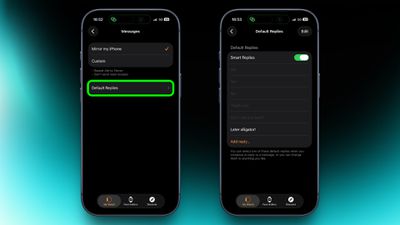
Smart replies are useful when you want to answer in a few words. In the Watch app on iPhone, go to Messages and tap Default Replies to customize what you see. Then when a message arrives, simply swipe down and select one of the preset responses.
Pause activity rings
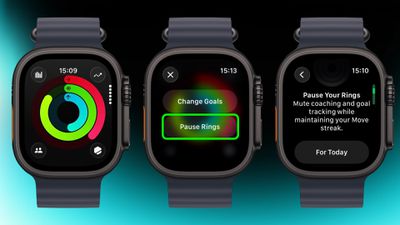
Feeling bad but hoping to keep your streak intact? In the Activity app, select your ringtones and access the option to pause them for that day or set a pause that will last until the selected date up to 90 days in advance.
Create a note
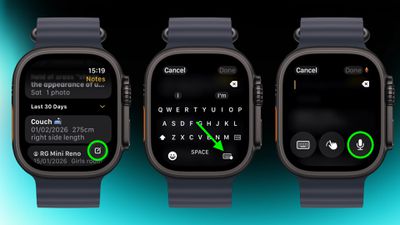
In the new Notes app in watchOS 26, you can’t edit existing notes on Apple Watch, but you can create a new one by tapping the typing control in the lower right corner and speaking. Because Notes are synced via iCloud, you can refine or reorganize everything later on your device using the physical or on-screen keyboard.
Mute and cancel notifications
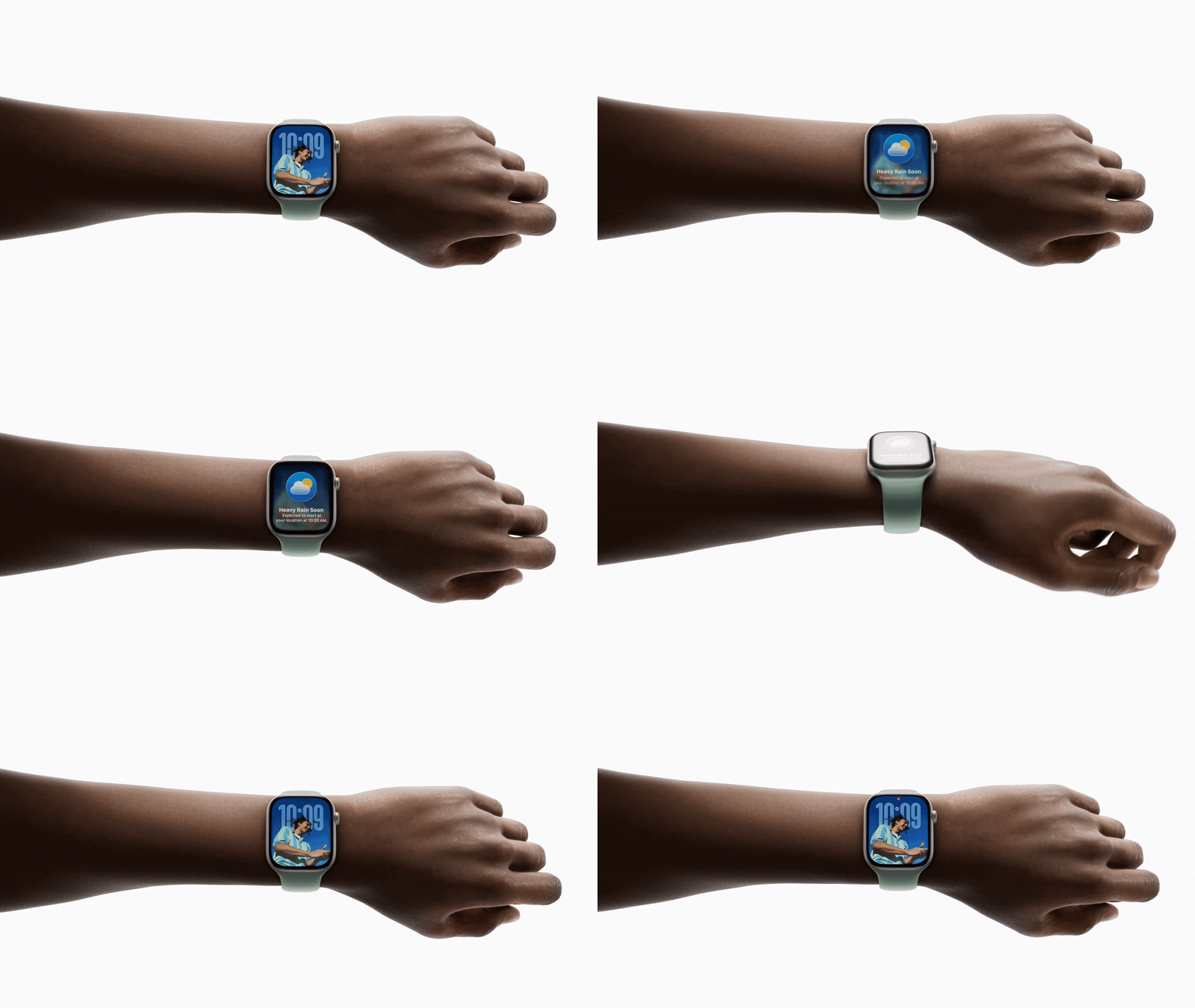
With a quick twist of your wrist, you can clear the current screen and return to the watch face. The same gesture can be used to mute calls, stop timers, and dismiss notifications. Enabled by default, this feature is supported on Apple Watch SE (3rd generation), Series 9, Ultra 2 and later.