
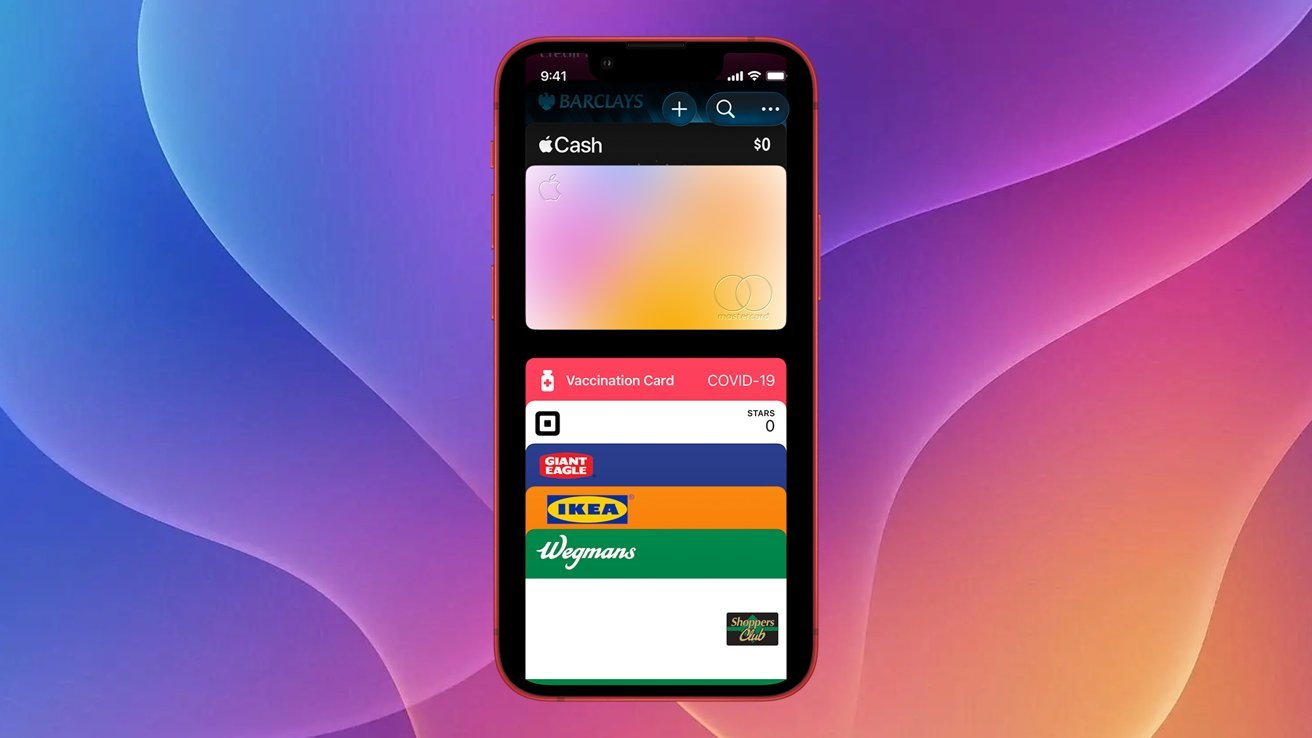
You probably know that the Apple Wallet app can store credit and debit cards, but it can also contain unsupported rewards and membership cards. Here’s how to do it in iOS 26.
Like most of us, you’ve probably collected dozens of membership and rewards cards over the years. And somehow you always seem to misplace them when you need them most.
Instead of digging through your wallet, purse or bag forever, you can keep your loyalty cards in the Wallet app. This makes them much easier to find when you actually need them.
Some loyalty cards can be added to your iPhone automatically through a prompt in the app or a button on the company’s website. Still, many cards are not supported, but there is an easy workaround.
For this we will use Pass2U, a popular wallet management app. Pass2U is free to use, but has a one-time $2.99 in-app purchase that allows for more customization options, barcode types, and removes watermarks and ads.
Keep in mind that you can do this for loyalty cards, gift cards, boarding passes, and store cards. While Pass2U suggests you can use it for adding IDs, we’d avoid relying on it instead of a physical ID like a driver’s license.
Adding loyalty cards to Apple Wallet is as easy as choosing a template and filling in the required information
How to add a loyalty or membership card to iPhone
- Download the Pass2U app to your iPhone
- Start Pass2U
- At the bottom, tap on Pass Store
- Enter the name of the rewards card in the search box at the top
- Find a template you like and tap on it
- Tap Other
- Fill in the required fields
- Scan your card’s barcode with Scan function
- When done, tap on Done
Important: Although you get the template from the Pass Store, you don’t need to buy anything to use it.
And it is. It’s a great tool to have in your back pocket. After all, you’re probably more likely to have your iPhone in the drawing than one of your dozens of rewards cards.