
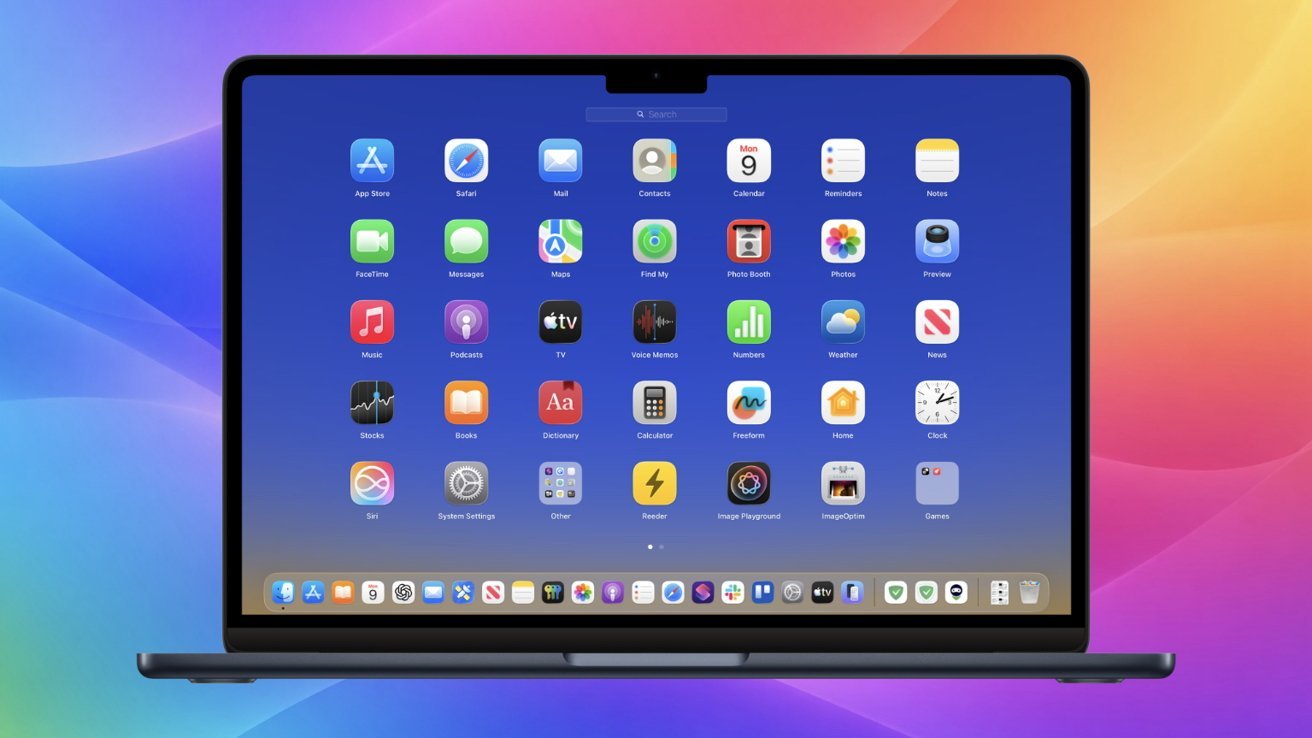
Apple power users on macOS Tahoe are deliberately canceling parts of Apple’s latest UI redesign to remove the liquid glass design.
There is an unofficial workaround that brings back the classic Launchpad grid and reduces the heavy translucency of Liquid Glass. This tool allows users to enjoy the performance and feature updates of macOS Tahoe without fully adopting its new visual style.
Liquid glass looks sleek in screenshots and marketing videos, with layered blur and reflections that give a sense of depth and movement. In everyday use, these effects can be distracting, especially on large displays or detailed wallpapers.
Menus and controls lose contrast and text has to compete with background content. The interface requires more visual attention than many productivity-minded users are willing to pay.
Launchpad’s familiar full-screen grid of apps, manually organized into pages and folders, is replaced by enhanced Spotlight search and an iOS-style app library that automatically categorizes apps. Spotlight is now more capable and some users find it faster than browsing.
But it also shifts the focus away from the visual memory and hands-on organization that have been central to many long-standing Mac workflows.
Apple doesn’t provide a system setting to reverse changes like resetting Launchpad or disabling Liquid Glass. For this reason, technology-savvy users are turning to community-developed tools.
These tools selectively roll back specific design decisions without permanently changing macOS.
Why Apple Abandoned Launchpad
Apple has been integrating app discovery into Spotlight for macOS, iOS, and iPadOS for years. Spotlight has evolved from a simple file finder to a system-wide content launcher and indexer that absorbs functions that once lived in separate interfaces.
On macOS, recent updates emphasize Spotlight actions, embedded results, and contextual suggestions, reducing reliance on dedicated launch views like Launchpad. This change reflects Apple’s approach to iOS and iPadOS, where the app library replaced manual home screen layout as the default app management model.
This approach favors search-first navigation as application libraries grow, reducing the need for users to manage visual layouts. For longtime Mac users, the shift trades discoverability and visual memory for speed, and offers fewer options for those who prefer browsing to typing.
What does the Undye solution actually do?
The solution that most users have converged on is an open-source tool called Undye, which is available on GitHub at Launchpad Revived. Undye automates the entire process and makes each step explicit.
Under the hood, Undye replaces macOS Tahoe’s Dock with an older Apple-signed Dock binary from the early macOS 26 beta, back when Launchpad was still part of the system. A binary is a compiled executable, and in this case, it’s one created and signed by Apple itself, not modified or patched by a third party.
Undye also reinstalls the Launchpad app that Apple removed from later builds of macOS Tahoe.
Because these components are authentic and unaltered, macOS recognizes them as legitimate system software. Avoids code injection, memory patches, or hidden function flags.
Launchpad is restored and behaves like in earlier versions of macOS, with reduced transparency in menus, Control Center and other system panels.
This approach is not supported by Apple and a future macOS update could break compatibility. However, since Undye relies on Apple-signed binaries rather than exploits or hacks, it has remained functional through several macOS Tahoe updates.
If Apple tightens authentication around Dock components, users would have to remove this workaround before updating.
Who should and should not attempt it
This solution is intended for personal Mac computers that users fully own and manage themselves. It’s best suited for people who are comfortable working in macOS Recovery, typing terminal commands, and maintaining reliable system backups.
It should not be used on work Macs, managed systems, or devices subject to mobile device management policies. Anyone who is uncomfortable temporarily disabling system integrity protection or restoring from a backup should avoid this process altogether.
Because Undye modifies system files, Apple does not support this configuration. Apple Support may ask users to revert changes before resolving unrelated hardware or software issues.
Step one: download Undye
Open a web browser and go to the Undye GitHub repository on GitHub. Click the Code button to download the project as a ZIP file.
ZIP preserves file permissions and ensures that you receive a complete, unaltered project. After downloading, unzip the archive and move the resulting folder to a suitable location, for example, to the newly created folder under Downloads.
The extracted folder contains a single script along with Apple-signed system components that Undye will install during the process.
Step two: disable system integrity protection
System Integrity Protection prevents modification of important macOS components and must be temporarily disabled for this solution to work.
- Restart your Mac.
- Enter macOS Recovery.
- On Intel Macs, immediately press and hold Command + R until the Apple logo or spinning globe appears.
- On Apple Silicon Macs, shut down your Mac, then press and hold the Power key until you see “Loading Startup Options,” select Options, and click Continue.
- Once the macOS Tools screen appears, open Terminal from the Tools menu.
In Terminal, type:
csrutil disable
After receiving the confirmation, restart your Mac normally.
Step three: run the Undye script
Open Terminal in macOS and navigate to the extracted Undye folder. Carefully copy and paste the command below, making sure it is typed exactly as written.
sudo ./launchpad
Enter the administrator password when prompted. The script replaces the Dock, reinstalls the Launchpad, and automatically restarts the necessary system services.
During execution, Undye prints code signing information so that users can confirm that the installed components are signed by Apple.
Confirm Launchpad and reduce opacity
Once the script has finished, Launchpad should appear in the Dock or respond to its usual keyboard shortcut. Opening it up reveals the same paged grid of apps with folder support that longtime Mac users have come to expect.
System UI elements such as the Control Center and menus should appear more opaque and readable than before. Additional opacity can be enabled separately using the Reduce Opacity option in System Preferences under Accessibility, which is independent of Undye.
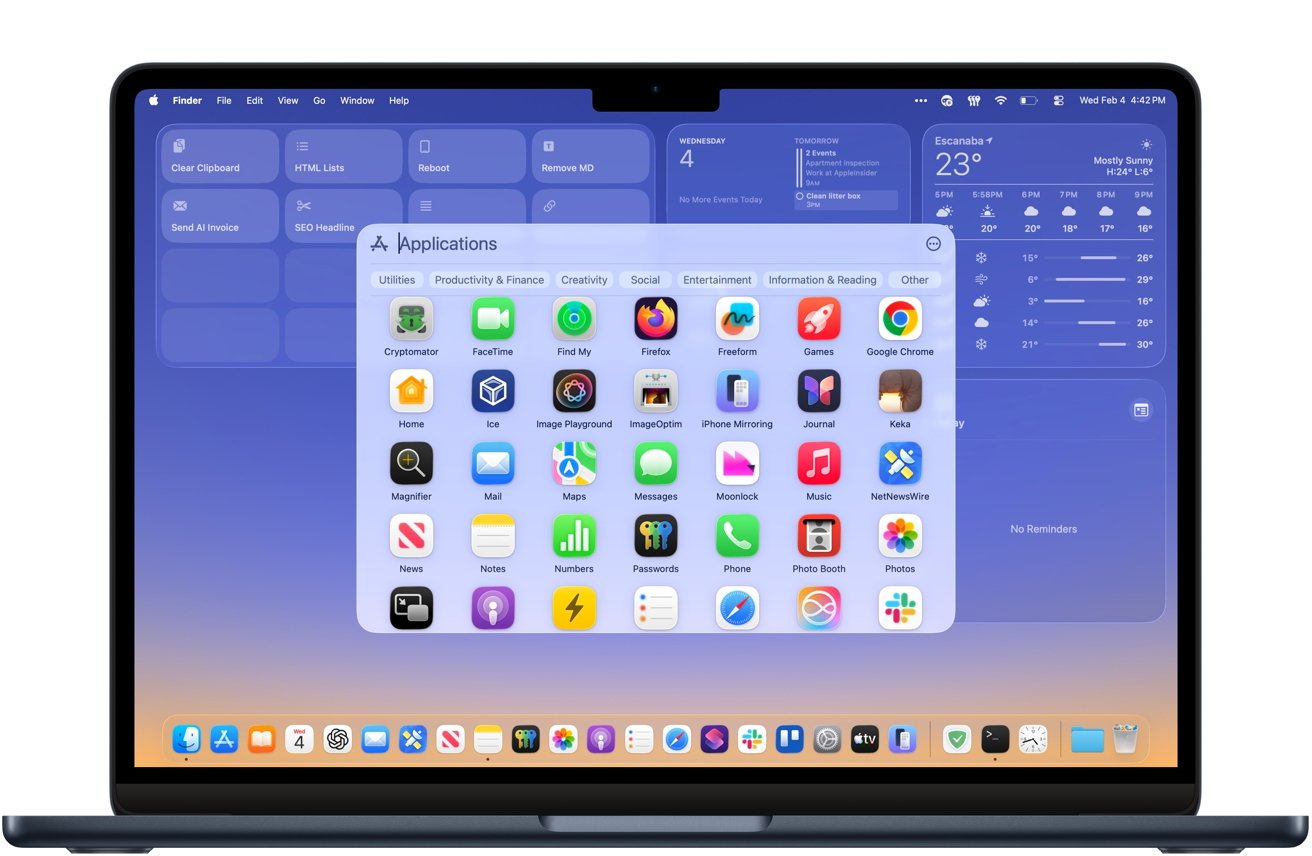
Spotlight and App Library remain available, along with the revamped Launchpad
Dynamic icons such as Calendar appear as static in Launchpad, just like in older versions of macOS. Minor visual quirks may appear in some Finder views or system trays, but these are cosmetic and do not affect basic functionality.
Re-enable System Integrity Protection
After confirming that everything is working as expected, System Integrity Protection should be re-enabled.
Reboot into macOS Recovery, open Terminal and run:
csrutil enable
Restart your Mac normally. The restored Dock and Launchpad continue to work with System Integrity Protection enabled.
The Undye script is fully reversible. Running the same script again with System Integrity Protection turned off will restore the original Apple Dock and remove the Launchpad.
After returning, users can re-enable System Integrity Protection and return to the default liquid glass interface of macOS Tahoe and launch Spotlight-based apps. Apple may change or block this behavior in future releases, so users should reevaluate compatibility before major system updates.